How to bulk edit products in Shopify (and undo it)
Short answer: For a handful of products, select them in Products and click Bulk edit to change fields in a spreadsheet-style grid. For big changes, export a CSV, edit it and import it back. Either way, export a CSV backup first. Shopify’s help pages describe no undo for bulk edits: once you save, putting the old values back is on you.
Option 1: Shopify’s bulk editor
- Go to Products. Filter the list (vendor, type, tag, collection or status) so only the products you want are showing.
- Tick the products, then click Bulk edit.
- Click Columns to add the fields you need (price, compare-at price, SKU, tags, weight and more).
- Edit the cells, then click Save. If Shopify flags invalid values, fix them and save again.
Good for: quick fixes to tens of products where you type each value. Not good for: “raise every price 10% and round to .99”, because you work out and type every value yourself.
Option 2: CSV export and import
- Products › Export, and pick the products you want. Keep this file untouched as your backup.
- Copy it, make your changes in a spreadsheet, and save as CSV.
- Products › Import, tick Overwrite products with matching handles, and upload.
Good for: large catalogs and formula-based changes. Watch out for: a column that’s in the file but left blank erases that value in your store (leave out columns you aren’t changing), editing option values creates new variant IDs, and spreadsheets can reformat barcodes and SKUs (leading zeros, scientific notation). Import a few products first.
Before any bulk change
- Export a backup CSV of exactly the products you’re about to change.
- Change 5 products first and check them on your storefront.
- For a sale, write down when it ends and who will put prices back.
Where Shelfworks fits: Editback
Editback is a bulk editor built around undo. Every change it makes records the value it replaced, so a finished edit can be undone from History.
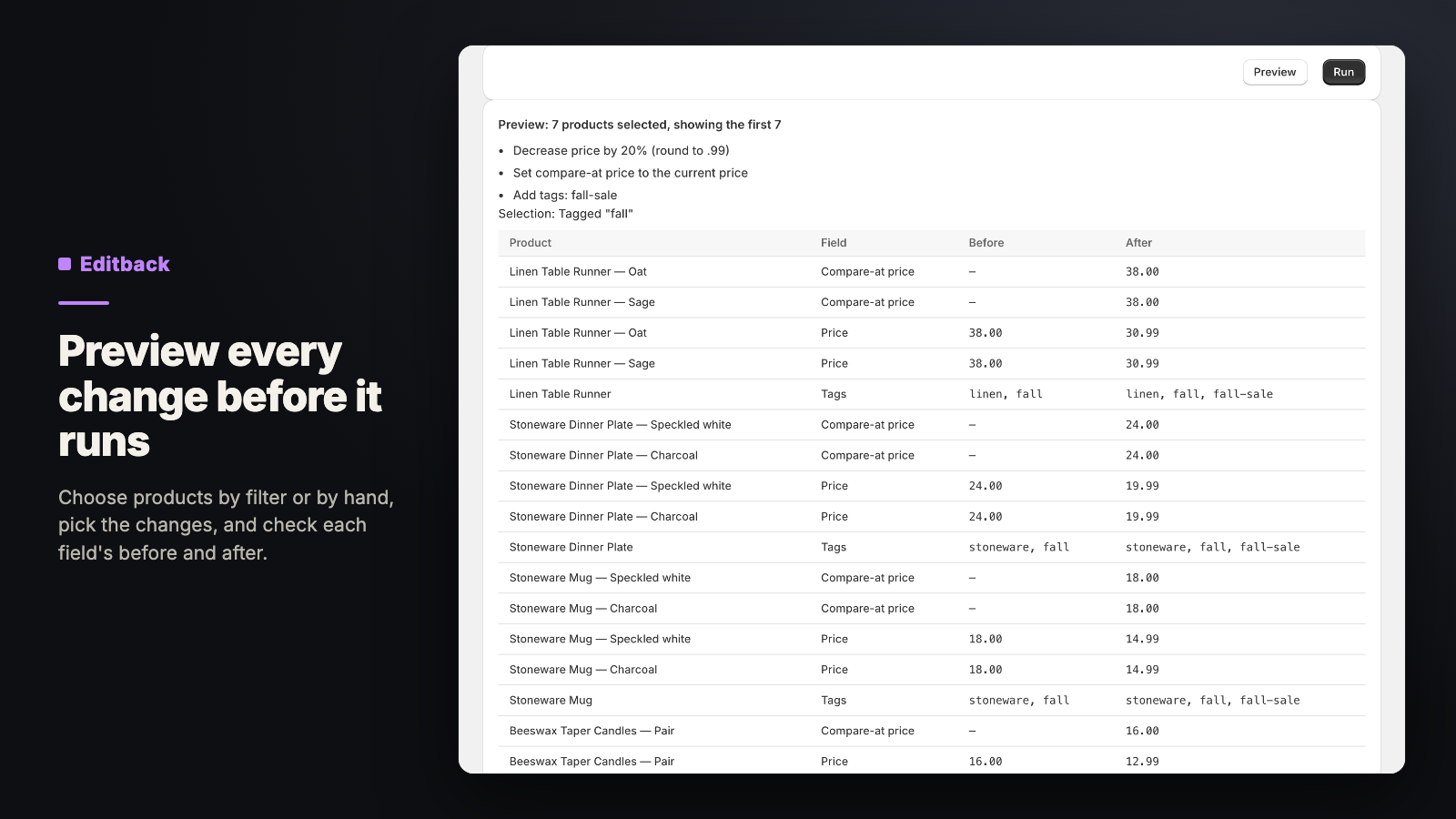
- Prices by amount or percentage with optional .99 or .95 rounding, compare-at prices, tags, vendor, type, status, title find-and-replace, SKU prefixes and suffixes, and metafields.
- Shipping details too: weight, HS code and country of origin, tracking and “requires shipping”.
- Preview the change before you run it.
- Schedule an edit to start later, and give it a revert time so a sale ends by itself.
- Free for 1 bulk edit a month, and undo is always free; the paid plan removes the monthly limit.
Status: Live on the Shopify App Store. See what Editback does, its price and FAQ. Get Editback on the Shopify App Store. Free plan: 1 bulk edit a month, and undo is always free. Questions: support@shelfworks.app.
Related guides
- Shipping rates not showing at Shopify checkout? Check these
- How to print barcode labels for your Shopify products