Shopify products missing HS codes or country of origin: how to find and fix them
Short answer: In your Shopify admin go to Settings › Taxes and duties, open Duties and import taxes › Manage and export a CSV of products with missing information. Fill in the HS code and Country of origin columns, then import it with Update with CSV. Shopify says HS codes are required for international shipments, and that a missing country of origin or a wrong HS code can mean your customer is charged extra duties on delivery.
Why missing customs information matters
- Duties at checkout. Shopify lists products with HS codes applied as a requirement for collecting duties and import taxes at checkout. Its help page warns that those charges are estimates, and that a missing country or region of origin or an incorrect HS code “might result in additional duties being charged to the customer upon delivery”.
- Shipping labels. If you buy labels with Shopify Shipping, the HS code and country of origin saved on the product pre-fill the customs form. If they’re blank, you type them in for every international order.
- Border problems. Shopify says missing HS codes can lead to non-compliance penalties, border delays, seizure of the products or denial of import.
The country of origin is where the product was made or assembled into the form you sell it in. An HS (Harmonized System) code is an international trade code, usually six digits, that describes what the product is. Some countries add digits after the first six; when a country-specific code exists Shopify uses it for that country, and otherwise uses your six-digit code. If you turn on Shopify’s Managed Markets, Shopify assigns HS codes itself and says the code it applies isn’t guaranteed to match the one you entered.
Step 1: find which products are missing them
- Shopify’s own export. Go to Settings › Taxes and duties, click Manage in the Duties and import taxes section, then Update with CSV › Export. Shopify’s steps call this a CSV of products with missing information, and it is emailed to you. You can also reach it from Markets by choosing a market and then Manage › Duties and import taxes.
- The bulk editor. In Products, select products, click Bulk edit then Columns, and in the Shipping section add Harmonized system code and Country of origin. Blank cells are your gaps.
- When you set up duties. The setup steps for collecting duties at checkout include reviewing products flagged as missing an HS code and country of origin.
Step 2: fix them
A few products: the product page
Open the product, make sure Physical product is on in the Shipping section, choose a Country of origin, and enter the Harmonized System (HS) code. If you don’t know the code, start typing a description of the product and Shopify searches for one. To give a code extra digits for a particular market, use Add HS codes by country/region; you can only pick countries from your markets.
Dozens of products: the bulk editor
Use the columns above and type the values in. This suits you if you already know the codes.
Hundreds of products: the CSV
Edit the file you exported in Step 1 in a spreadsheet and import it again with Update with CSV › Import. Its columns are Product Handle, Product title, Variant SKU, the option name and value columns, Country of origin and HS code. Leave the identifying columns alone and change only the last two. Shopify says this file is meant for HS codes and country of origin only; to change other values use the inventory CSV.
If most things come from one country
Under Settings › Taxes and duties in the Customs information section you can set a Default country of origin. It is used only for products without their own value, and a value set on a product overrides it.
Mid-order
If you haven’t added HS codes yet, you can add them when you buy a label (Create shipping label › Edit customs information). Tick Save shipping info to product details to keep the code on the product.
Before you import
- Check the country is right for each product. A wrong value is worse than a blank one, because it looks finished.
- Check the HS code is the one for what you sell. A tool can tell you a code is the right length; only a customs broker or your country’s tariff schedule can tell you it’s correct.
- Do five products first and look at one test order’s customs information before you import the rest.
Where Shelfworks fits: Shelfcheck
Shelfcheck keeps watching for the gap, so you don’t have to rerun exports. It checks your active variants and lists every one that ships but has no HS code or no country of origin.
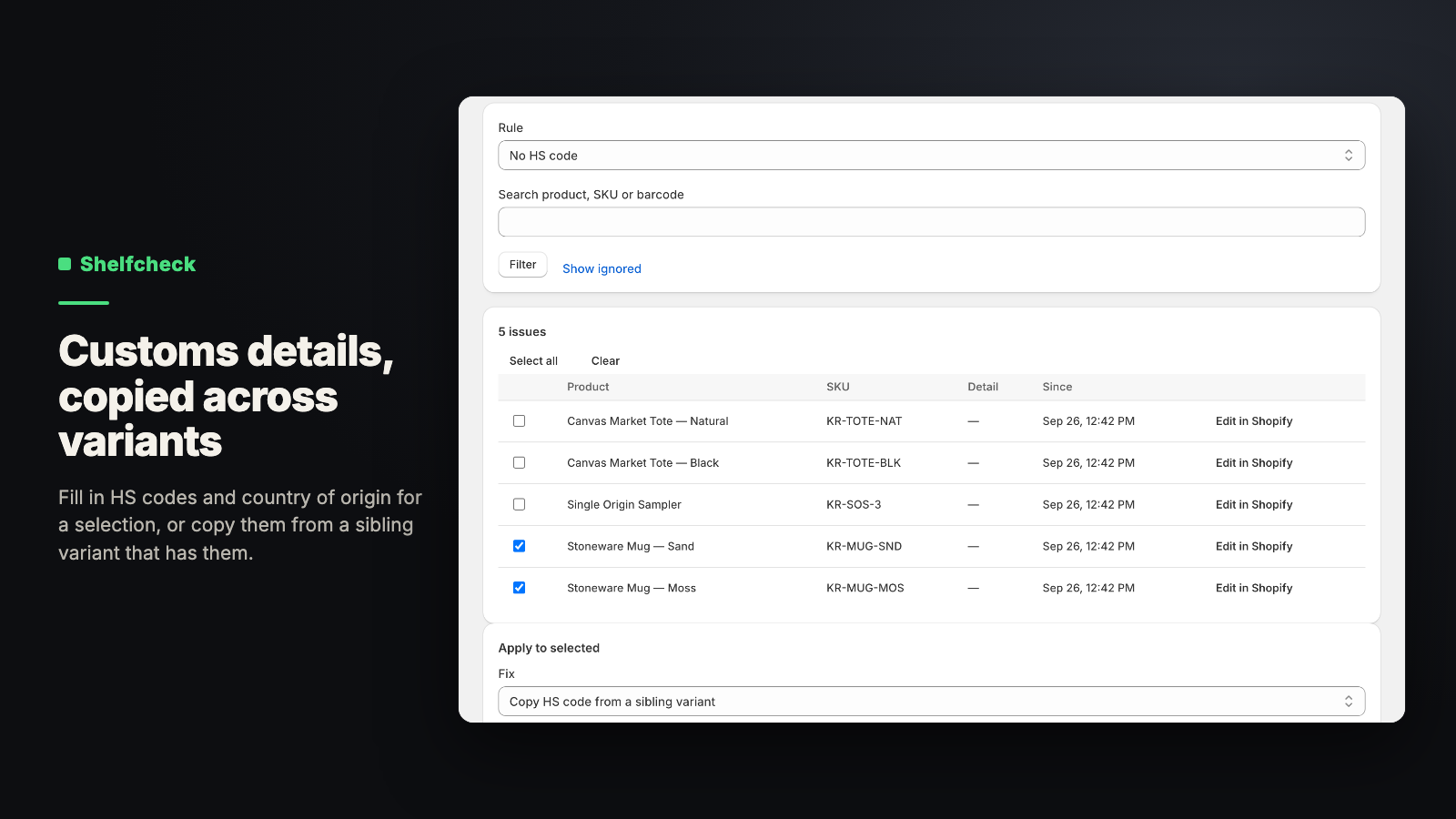
- Two separate checks, “No HS code” and “No country of origin”, which apply to active variants that require shipping. Each can be switched off, and both only apply if you tell Shelfcheck in Settings that you ship internationally.
- Set an HS code or country of origin on the variants you tick, or copy them from a sibling variant that already has them. Shelfcheck accepts an HS code of 6 to 13 digits (dots and spaces are ignored) and a two-letter country code, and changes only the field you chose.
- Products are rechecked when they’re created or edited, so a new product shows up the same day it’s added.
- A readiness score shows how much of your catalog is ready. A variant missing customs details counts less than a ready one.
What it doesn’t do: it doesn’t choose an HS code for you or check that a code is the right one for the product, and it reads what is saved on each variant.
Status: Live on the Shopify App Store. See what Shelfcheck does, its price and FAQ. Get Shelfcheck on the Shopify App Store. $9/month with a 14-day free trial. Questions: support@shelfworks.app.
Related guides
- Shipping rates not showing at Shopify checkout? Check these
- How to bulk edit products in Shopify (and undo it)